
Record a walkthrough, get a draft
Do the thing once on your own product. We write it up.
By HeyThula · Updated
Rather than writing a how-to from memory, you can do the task once on your own product and have the steps drafted for you.
Step 1 — Describe what you're going to show
In Help Center, choose Record a guide and say what the guide should cover — "How to invite a teammate". That description tells the drafting what you were trying to demonstrate, so it matters more than it looks.
Step 2 — Take the recording link to your product
You get two ways to start:
Drag the button to your bookmarks bar, then click it while on your product. The page reloads with the recording link in its address and starts recording.
Or copy the
?ht_record=…snippet, add it to your product URL's query string and load that address. Put it before any#— on an address likehttps://app.example/#/orders/42, that meanshttps://app.example/?ht_record=…#/orders/42. And if the address already has a?in it, change ours to&:https://app.example/dash?team=7becomeshttps://app.example/dash?team=7&ht_record=….
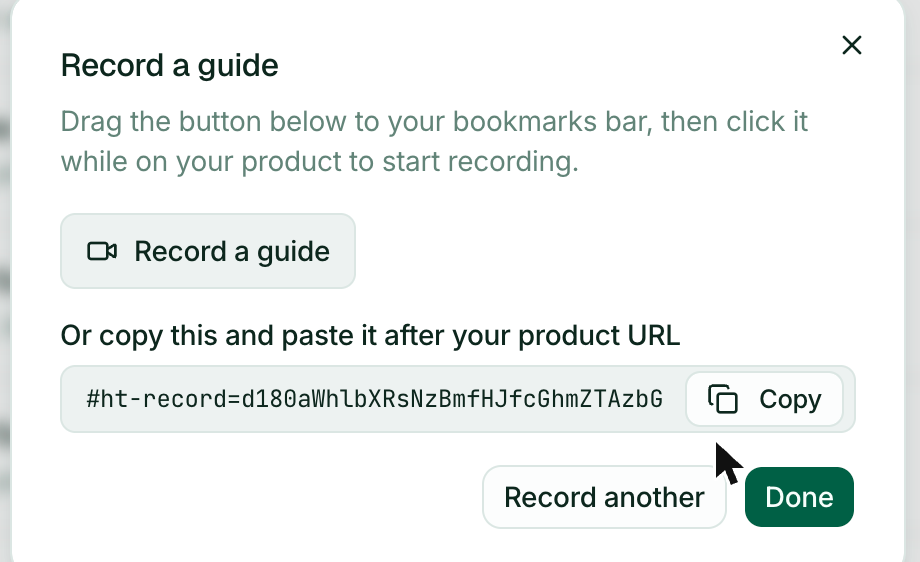
This only works on a page where your HeyThula widget is installed. The recorder is part of the widget — on a page without it, nothing happens. If you're testing, use your real site rather than the HeyThula dashboard.
Step 3 — Do the task
A recording bar appears at the top of the page showing ● Recording and your description. Now simply do the thing: click, type, submit, move between pages.
Work at a normal pace and take the route you'd actually recommend. Wrong turns and backtracking end up in the draft.
Step 4 — Stop and send
Press Stop & send. Your screenshots upload, the guide is drafted, and the bar confirms ✓ Sent — review it in Hey Thula, then asks you to reload the page. Recording mode stood in for your chat widget on this page load, and the reload brings the widget back.
Cancel discards everything instead.
Turn on screenshots first
Screenshots are opt-in. Press Enable screenshots on the recording bar before you start and confirm the browser prompt to share the tab.
Without it you still get written steps — but a guide with pictures is worth considerably more, so it's usually worth the extra click. See What gets captured.
Then review it
Nothing is published. The draft waits in Guide drafts for you to read, edit and publish — see Reviewing a generated draft.
If the link doesn't work
"This recording link is invalid or has expired" — recording links don't last forever. Create a fresh one.
Nothing appears at all — the page has no widget installed, or the address never actually loaded with ?ht_record=… on it. Recording starts when the page loads carrying the link, so after pasting the snippet into the address bar you have to press Enter.
You pasted the snippet and the page loaded normally — check for two ? in the address. If the URL already had one, the snippet has to start with & instead: https://app.example/dash?team=7&ht_record=…. With a second ?, everything after it counts as part of the previous value, so there is no recording link there to find and the page loads as usual. Fix the ? to & and load it again.
A bookmarklet you saved a while ago does nothing — older ones put the link on the page without loading it. Reload the page once and recording starts. Dragging the current button to your bookmarks bar replaces it and saves you the step.