
Workspaces, and when you need more than one
A workspace is a wall. Nothing crosses it.
By HeyThula · Updated
A workspace is one product, site or brand. It holds its own conversations, contacts, help-centre articles, branding and widget.
The important part is what a workspace doesn't do: nothing crosses between workspaces. A contact in one is a stranger in the other. An article written in one won't be found by the AI in the other. This is deliberate — it's the same wall that separates two different companies using HeyThula.
When one is enough
Most people need exactly one. If you have a single product, keep everything in one workspace: your team sees every conversation in one list, and every article you write feeds the same AI.
Splitting when you didn't need to is the more common mistake, and the expensive one. It divides your help centre, so each half grounds the AI more weakly.
When to add another
Add a workspace when the two things genuinely have different customers, different branding, or a different help centre. Two separate products with separate documentation and separate audiences deserve separate workspaces.
Don't add one to separate teams, or stages of a funnel, or categories of question. Those are jobs for assignment and filters within a single workspace.
Accounts sit above workspaces
Your account owns your workspaces. Billing, your plan and your team live on the account, not on any individual workspace — so a plan covers everything you run, and inviting someone to your account gives them access to the workspaces you grant.
That's why usage is counted per account: your AI resolutions are pooled across every workspace rather than allocated one by one.
The Unified Inbox spans them
Because your account can hold several workspaces, the inbox at the top of the sidebar is account-level: it merges conversations from every workspace you have access to, so you don't have to switch back and forth to notice a new message.
When more than one workspace is in view, each conversation is tagged with a coloured dot and the workspace name so you can tell at a glance who the customer is talking to. Use the filter at the top of the list to narrow to one workspace.
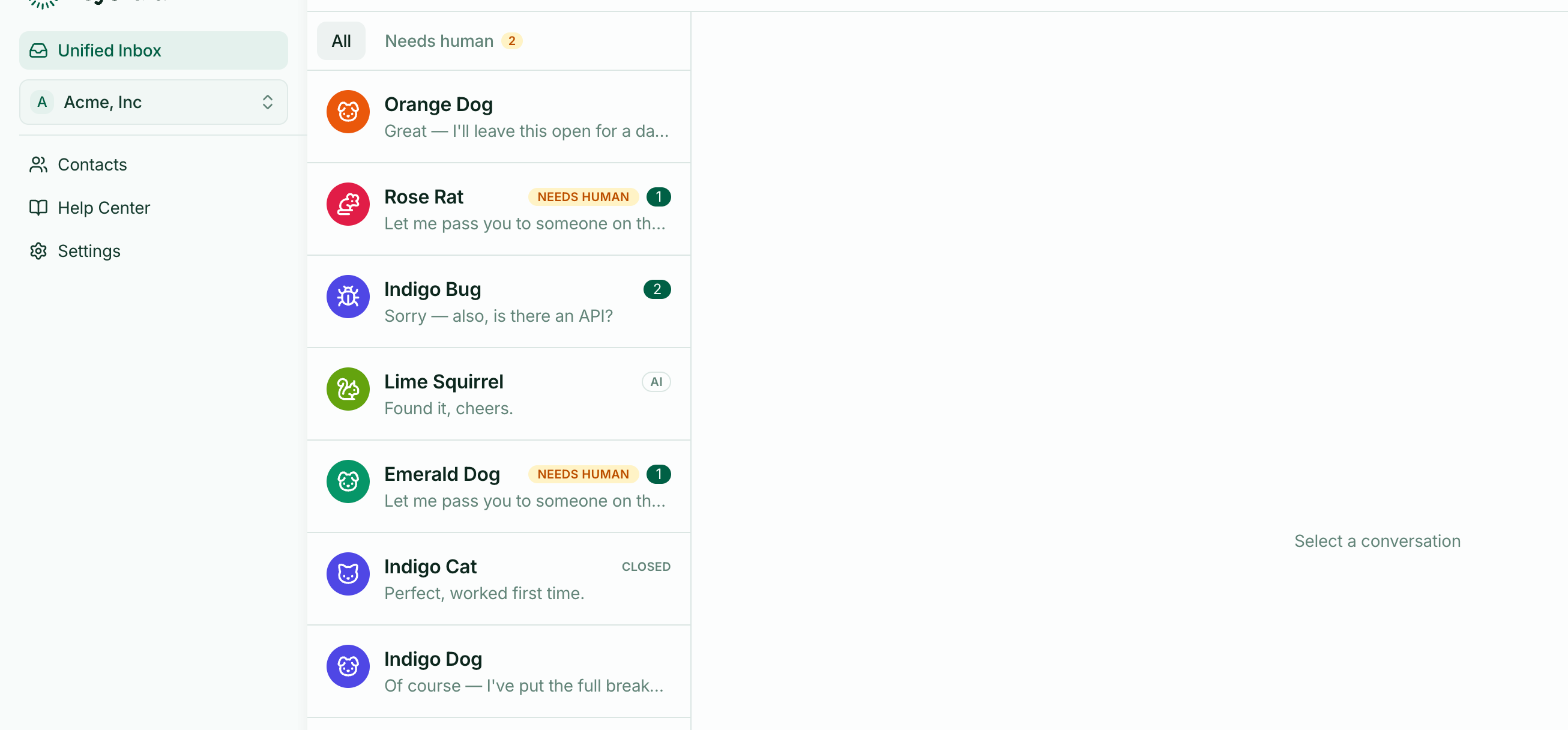
Everything below the workspace switcher — Contacts, Help Center, Settings — belongs to the currently selected workspace, not the account. If Contacts looks emptier than you expect, check which workspace is selected.
Switching
The switcher sits under the Unified Inbox in the sidebar. Selecting a workspace changes what Contacts, Help Center and Settings show. You can also create another workspace from there.