
Your first conversation
Send yourself a message and watch it arrive.
By HeyThula · Updated
Before you tell anyone the widget is live, test it yourself. It takes a minute and proves the whole path — widget, inbox, reply, delivery.
Step 1 — Open the widget on your site
Load a page carrying your snippet and click the launcher. You'll see your greeting and a Send us a message button.
Step 2 — Send a message
Type something and send it. You're an anonymous visitor at this point, so you'll appear under a generated name rather than your own.
Step 3 — Find it in your inbox
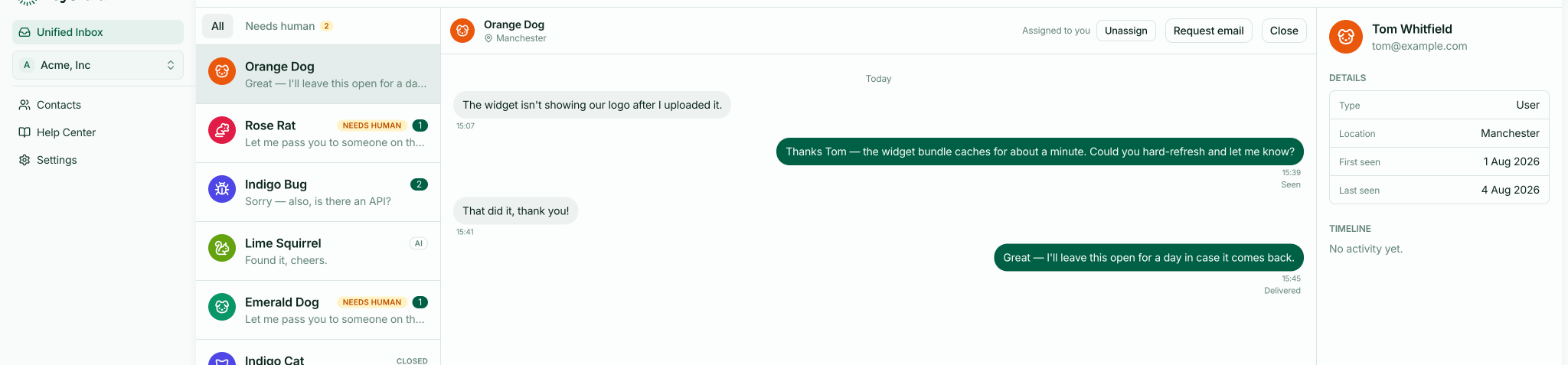
Open Unified Inbox in the dashboard. Your message should be there within a second or two, with an unread count.
Open it and the count clears — which also tells HeyThula your team has seen it, so no notification email goes out.
Step 4 — Reply
Type in the box at the bottom and send. Switch back to the widget: your reply is there.
Two things just happened automatically. The conversation was assigned to you, and the AI stopped replying to it — a human is now handling it. Both are covered in Reading and replying.
What to look at
The contact panel on the right shows what's known about the visitor — location, first seen, last seen. Sparse for an anonymous tester, which is the point of identifying your users.
The delivery line under your reply. Testing in the same browser, it'll say Seen, because you were looking at the conversation. See Sent, Delivered, Opened and Seen.
Then close it
Press Close to take your test out of the working list. You can reopen it any time, and a new message from that visitor would reopen it anyway.