
Upgrading your plan
Takes effect immediately, pro-rated, owner only.
By HeyThula · Updated
Upgrade from Settings → Billing, or from the Upgrade button on the plan card at the bottom of the sidebar.
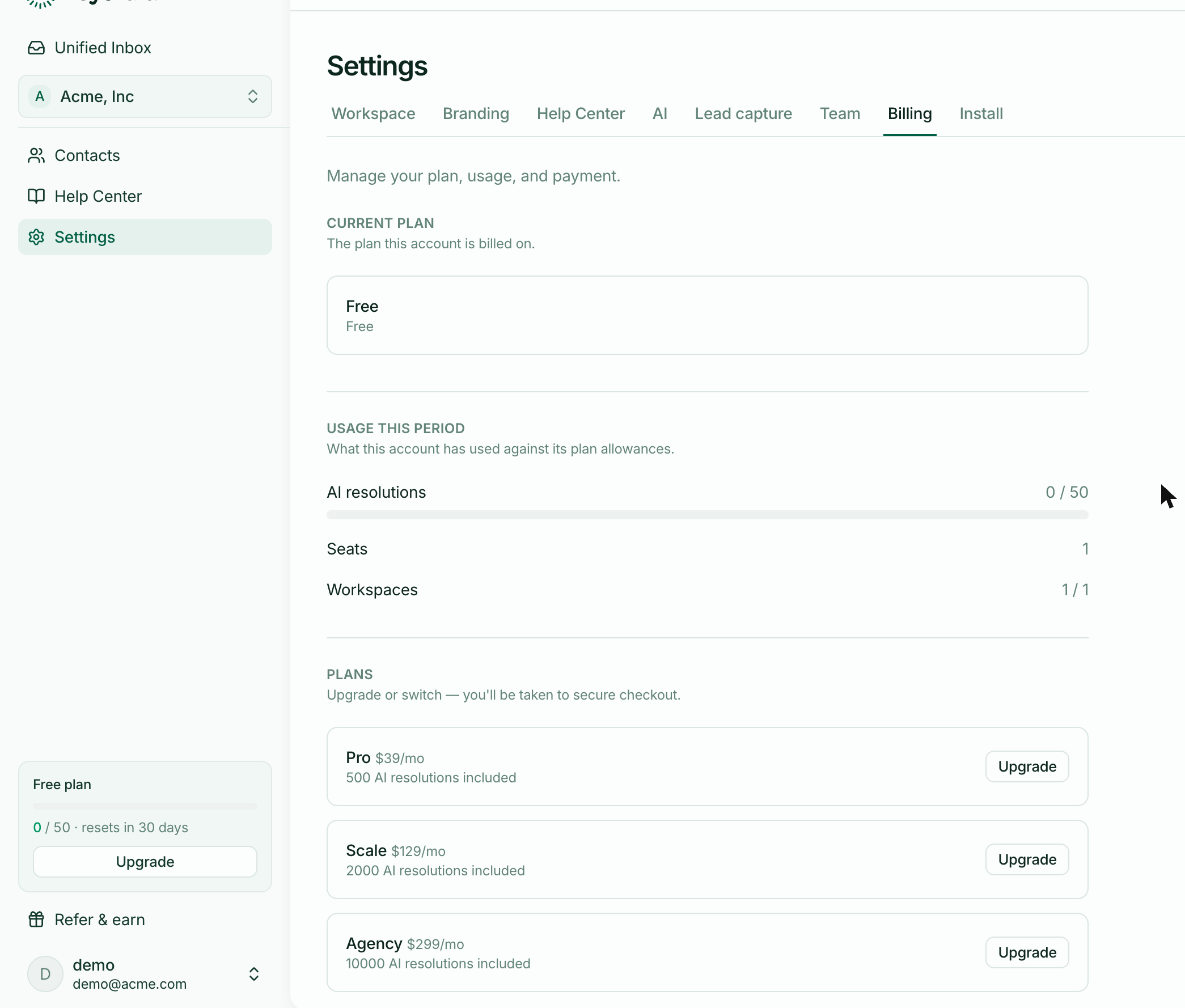
Step 1 — Choose a plan
Each plan lists its price and included AI resolutions. Pick on expected conversation volume rather than seats — volume is the limit most teams meet first. See Plans and what's included.
Step 2 — Pay
You're taken to a secure checkout to enter card details. HeyThula never sees or stores your card number.
Step 3 — Done
You come straight back, already on the new plan.
It applies immediately
The new allowance is available at once. If the AI had paused at a Free cap, it resumes immediately — you don't wait for the next period.
Your bill is pro-rated, so you pay only for the remainder of the current period at the new rate.
Only the owner can upgrade
Billing belongs to the account owner. Everyone else sees the plan and usage — so the whole team knows where things stand — but the Upgrade button is the owner's.
If you're not the owner and you're hitting the cap, that card in the sidebar is what to show them.
Downgrading
Also from Settings → Billing. Take note of the lower plan's seat and workspace limits first: if you're above them, sort that out before downgrading rather than after.
What doesn't change
Nothing about your setup. Conversations, contacts, articles, branding, your widget snippet and your help centre address are all untouched by a plan change. Only limits change.