
Light, dark and automatic themes
Automatic follows each visitor's own device, not your site.
By HeyThula · Updated
The widget has a Widget theme setting in Settings → Branding, with three options.
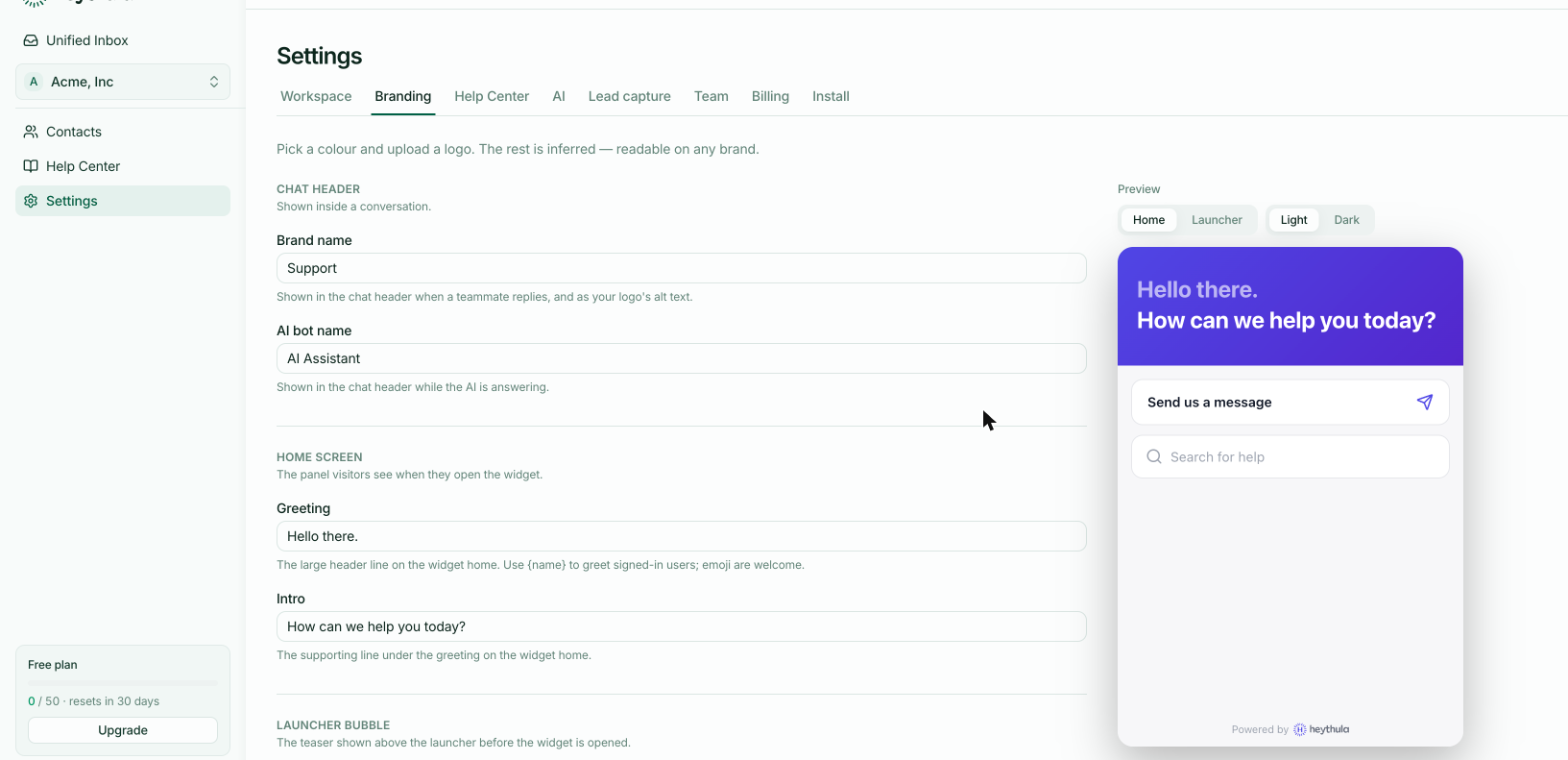
The three settings
Auto (match visitor's device) — each visitor sees the widget in whichever mode their own device is set to. Someone browsing in dark mode gets a dark widget; someone in light mode gets a light one. This is the default.
Light and Dark force one appearance for everybody, whatever their device says.
Automatic follows the visitor, not your site
This is the part that surprises people. Auto keys off the visitor's operating system preference — not your website's theme, and not the mode you happen to be in while editing.
So a dark-mode visitor gets a dark widget on your light website. That's intentional: they chose dark for a reason, and the widget is a panel they interact with rather than part of your page design.
If your site has its own light/dark toggle, the widget won't follow it. Choose Light or Dark if you'd rather it always matched your page.
It changes as they change
If a visitor switches their device to dark mode while your widget is open, the widget follows immediately. No reload.
Your brand colour works in both
You don't need a second colour for dark mode. Your primary colour is adjusted automatically so text stays readable on either background — a colour that works on white is darkened appropriately against dark surfaces rather than glowing.
That's why there's only one colour picker.
Checking both looks
The preview beside the settings has Light and Dark buttons, so you can see both without changing your own device. Worth a glance after setting a brand colour — especially a very light or very saturated one.