
Reading and replying
The three panes, and what happens the moment you reply.
By HeyThula · Updated
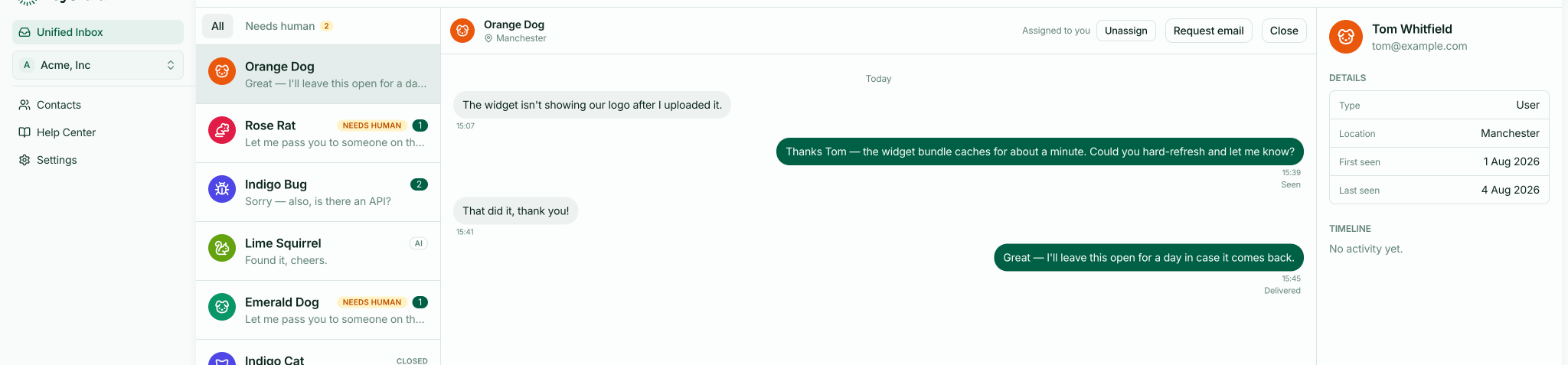
The inbox has three parts: the list of conversations, the conversation itself, and the contact panel showing who you're talking to.
Reading
Select a conversation to open it. Your messages appear on the right, the customer's on the left, with AI replies marked so you can tell at a glance what was automated.
Opening a conversation clears its unread count and records that your team has seen it. That second part matters: it's what stops a notification email going out about a conversation someone is already reading.
Replying
Type in the box at the bottom and send. Your customer sees it immediately if they're still on your site, and receives it by email if they've left and you have an address for them.
Two things happen automatically the first time you reply:
The conversation is assigned to you, if nobody had it. See Assigning conversations.
The AI stops replying to it. From that point the conversation is yours; the AI won't add anything further.
Formatting
Replies support basic formatting — bold, links, lists — rendered for the customer in the widget.
Keep it light. A support reply is read on a phone, in a small panel, usually by someone who is mildly annoyed.
Typing indicators
You can see when the customer is typing, and they can see when you are. Nothing to switch on.
Asking for an email
Request email prompts the customer for an address without you having to ask in words. Useful when a conversation clearly isn't finishing in one sitting and you'll need to follow up after they've gone.